 BACK 40
- Turn on Meat & bulk orders under Add-ons, then open Meat orders.
- Offer something: a name ("Half hog"), the animal, the price per pound of hanging weight, about how many pounds, the deposit, how many you have, the butcher, the butcher date and when cut sheets are due. Add a note, for example what the butcher charges for processing.
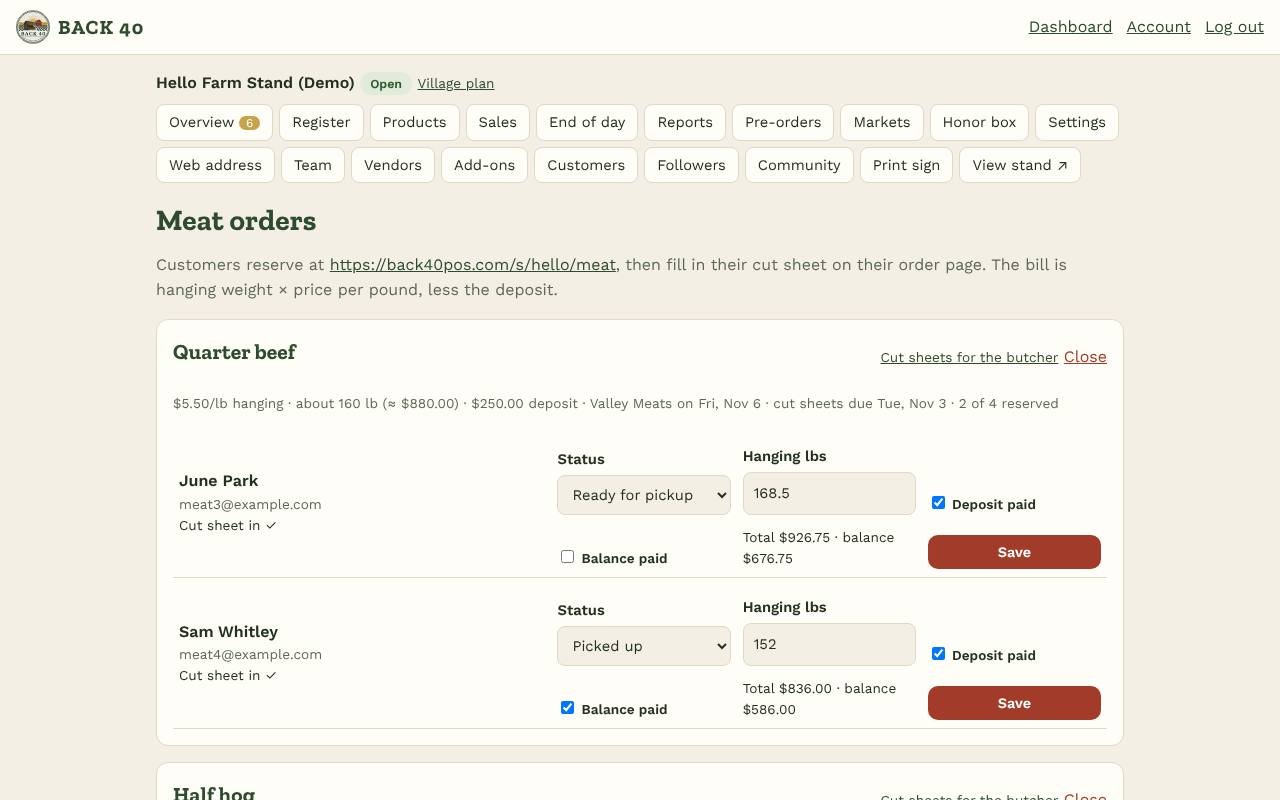
- Customers reserve from your stand page (or the link at the top of the Meat orders page) and get an order page by email. Collect the deposit your way and tick Deposit paid.
- On their order page they fill in a cut sheet with the usual choices for that animal (steak and chop thickness, roasts or ground, bacon or fresh side, sausage, extras) and notes. They can change it until you set the order to At the butcher.
- Open Cut sheets for the butcher and print every order's sheet at once.
- When the butcher calls with the hanging weight, enter it: Back40 works out the total (weight × price per pound) less the deposit. Set the order to Ready for pickup and the customer gets an email with the balance. Tick Balance paid and Picked up when they collect it.
- Deposits and balances are owner-only; staff don't see this page.
- Book a processor on Back40: on an offering, open Book processing with a processor on Back40, choose the processor, date and head, and whether processing is billed to you or to each buyer. When they confirm, their name and date go on the offering, your customers' cut sheets go to them, and the hanging weights they enter go onto your bills. They mark it ready (and on Processor Pro, email your customers).
Meat orders
Halves and quarters with deposits, cut sheets and bills by hanging weight.
Screenshots
Related guides
- Add-ons: Books, Marketing kit, LoyaltyBookkeeping, posts and flyers, punch cards and gift cards.
- CSAShares, pickup sites, holds and swaps, installment payments.
- WholesaleSell to restaurants and stores with price lists and net-30 invoices.
- U-pick & eventsTime slots, tickets and gate check-in for u-pick days and workshops.
Still stuck? Send us a message.
Be one of the first stands on Back40.
Leave your email and we'll let you know as soon as your spot is ready.