 BACK 40
Let neighbors and makers sell through your stand. Each vendor gets their own login and only ever sees their own items and sales.
- Open Vendors and fill in Invite a vendor: business name, email, commission (taken from their pre-tax sales), an optional monthly shelf fee, and how often you pay them. Set the starting commission for new vendors under Default commission.
- They get an email with a link that works for 14 days. They create a login (or log in with the one they have) and land on their vendor page.
- They add their products. Each new one shows as waiting for approval; open the vendor and tap Approve (or Turn down). You set tax and stock tracking on the Products page; they set their own names, descriptions and prices.
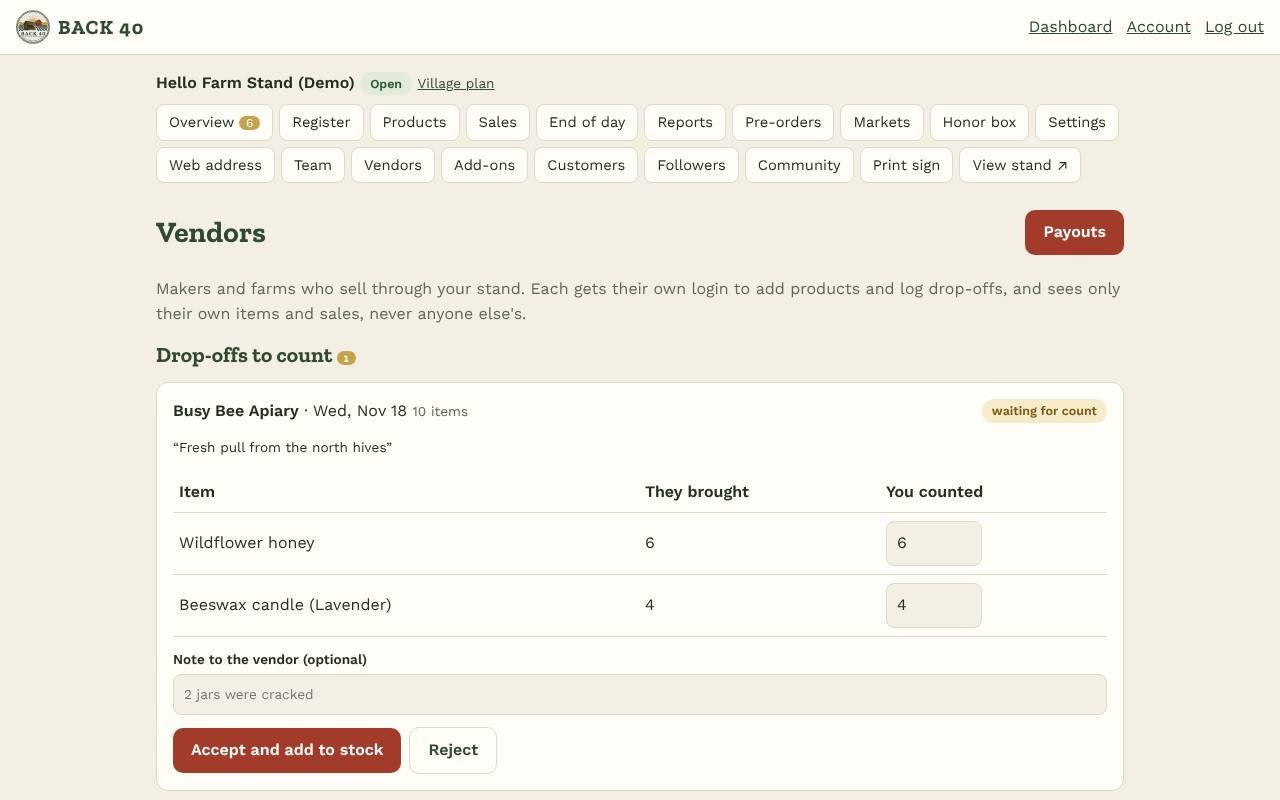
- They log a drop-off: what they're bringing and how many. When it arrives, open Vendors, enter what you counted, and tap Accept and add to stock (or Reject). Add a note if the count was different. Each drop-off shows in the product's stock history.
- Their items ring up on your checkout like yours, and each sale is credited to them.
- Sold by: on the Products page you can add a product for a vendor, or move one between you and a vendor.
- Sales: each vendor's page shows this month's and all-time sales (before tax), your commission and the sales tax collected. See what they see shows their page exactly as they see it.
- Pause hides a vendor's products from your checkout until you resume. Remove ends their access; their sales history is kept.
- Only owners can open Vendors.
- Requests: vendors can also ask to sell through your stand. They show under Asking to sell here: set your terms and tap Send these terms (or decline). They're connected once they accept the terms on screen. Invited vendors also tick "I agree to these terms" when they accept.
- Their catalog: on a vendor's page, see the items they shared with you (and how many they have at home, if they share that), and tap Add to my products.
- Restock: on a vendor's page, Restock fills in what's running low. Send it with a needed-by date. The vendor accepts (or brings fewer) and schedules the drop-off from their batches; you count it as usual and the request shows as delivered.
- Wholesale vendors (you buy up front): counting their drop-off creates an invoice at their wholesale price, due in 30 days. Mark it paid on their page. They're not on the Payouts page, since their sales are yours.
- Pausing: either side can pause or end a connection. If the vendor paused it, only they can resume it.
Paying vendors
- Open Vendors and tap Payouts. Each vendor's last full pay period (weekly Monday–Sunday, every two weeks, or a calendar month) is worked out: sales before tax, minus your commission, card fees (only for vendors whose terms pass them on), their shelf fee (charged in the period with the 1st of the month) and refunds of items already paid out.
- Tap Record payout (or Record all payouts). To pay an older period, pick a date in it first.
- Pay the vendor your usual way, then tap Mark paid with a note like "Check 1042". They get an email, and the statement appears on their vendor page. Recorded a payout by mistake? Void it before it's paid and record it again.
- Open any payout for its statement: what sold, the math line by line, and the sales tax you collected on their items (shown, never deducted). Print it, save it as PDF or download a CSV. A vendor's page also has a Monthly statement for any month.
Commission by category: on the Vendors page, set a different rate for a category for all vendors (for example 10% on Produce); on a vendor's page, set one just for them. Their own category rate comes first, then the stand's, then their usual rate.
Year-end summary
On the Vendors page, Year-end summary shows each vendor's year: what they sold through your stand, the commission and fees you kept, refunds, what they earned, what you paid them during the year and anything still pending. Pick the year at the top, then print it or Download (CSV) for your accountant. Back40 doesn't file tax forms (such as 1099s); your accountant can tell you whether you need to.